
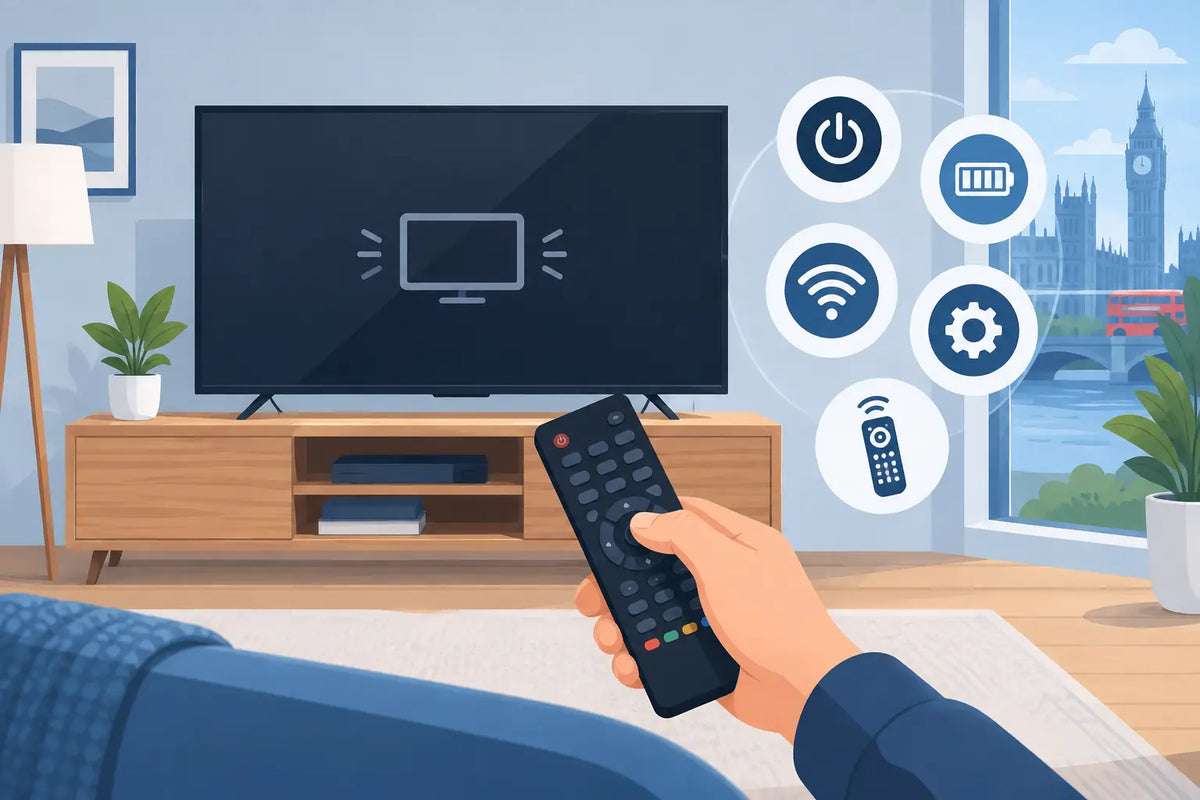
A remote that stops working can turn a simple evening in into a frustrating hunt for buttons on the television itself. Before assuming the remote has failed for good, this television remote troubleshooting guide will help you identify the fault, try the sensible fixes and decide when a replacement is the quickest answer.
Start with the simple checks
Most remote control problems come down to power, blocked signals or worn contacts. Start by replacing both batteries with new ones of the same type. Do not mix old and new batteries, or different brands, as uneven power can cause unreliable operation.
Check that the batteries are fitted in the correct direction. Look inside the battery compartment for corrosion, white powdery residue or rusty springs. If you see light residue, remove the batteries and carefully clean the contacts with a dry cotton bud. Leave the compartment completely dry before fitting fresh batteries.
Then stand close to the TV and point the remote directly at it. Move anything placed in front of the television's sensor, such as a soundbar, ornament or games console. Infrared remotes need a reasonably clear path to the receiver. Bright sunlight can occasionally interfere too, so try again with curtains closed if the room is very bright.
Check whether the remote is sending a signal
A mobile phone camera can often confirm whether an infrared remote is transmitting. Open the camera app, point the front of the remote towards the camera lens and press a button. On many phones, you should see a flashing white, purple or bluish light on the screen.
If you can see a flashing light, the remote is sending a signal. The problem may be with the TV sensor, a pairing setting or a button-specific fault. If there is no light after fitting new batteries, the remote is likely to have an internal issue.
This test does not always work with every phone camera or every Bluetooth remote, so treat it as a useful indication rather than a final diagnosis. Bluetooth and voice-control remotes do not always use infrared for normal operation and may need pairing with the television instead.
Television remote troubleshooting guide: reset the power
Remote controls can occasionally become unresponsive after a low battery, a stuck button or an electrical glitch. A quick reset is worth trying before replacing it.
Remove both batteries from the remote. Hold down the power button for around 15 seconds, then press a few other buttons while the batteries are out. This helps discharge any remaining power. Refit a fresh pair of batteries and test the volume, channel and power buttons.
At the same time, reset the television. Switch it off at the mains, wait for around one minute, then switch it back on. If the TV is connected to a set-top box, streaming stick or soundbar, restart those devices as well. A remote may appear faulty when the television or connected equipment has simply stopped responding.
If the remote turns the TV on but will not control volume or channels, check which device it is actually operating. For example, volume may be controlled by a soundbar and channels by a separate receiver. In that case, the TV remote may be working exactly as intended.
Look for stuck, damaged or worn buttons
A remote that only works intermittently often has worn button contacts or a button that is physically sticking. Pay particular attention to the power, volume, navigation and OK buttons because they receive the most use.
Press each button a few times. A button should feel similar to the others and return freely after pressing. If one feels sunken, unusually soft or permanently held down, it can prevent other commands from registering correctly.
Crumbs, dust and spilled drinks are common causes. Avoid pouring cleaning fluid directly onto the remote or taking it apart unless you are comfortable working with small electronic parts. For an inexpensive or older remote, replacement is usually more practical than a repair, especially where the case is cracked, the buttons are badly worn or liquid has got inside.
If only some functions have stopped working
When a remote operates basic TV functions but not smart features, the issue may be pairing rather than the batteries. Many newer televisions use a combination of infrared and Bluetooth. The power button may still work over infrared while voice search, app controls and on-screen navigation require a Bluetooth connection.
Check the TV settings menu using the buttons on the television, if available. Look for remote, accessory, Bluetooth or device pairing options. The correct steps vary between manufacturers, so use the television handbook or the on-screen prompts for your model.
If you have recently changed batteries, reset the TV or moved house, pairing can sometimes be lost. Follow the pairing process exactly and keep the remote close to the television. Do not assume every replacement remote needs pairing, however. Standard infrared replacements for many Panasonic, JVC, LG, Philips, Bush, Samsung and Logik televisions work straight away once batteries are fitted.
Make sure the fault is not the television
Try the TV's own buttons, usually found underneath the screen, on the rear edge or behind the lower panel. If the television will not turn on, change channel or adjust volume using its built-in controls, the fault may be with the TV rather than the remote.
Also check the mains lead, wall socket and standby light. A television in standby should normally show a small indicator light. If there is no light at all, test the socket with another device where safe to do so.
If the TV responds to its own controls but not to a remote that is clearly sending an infrared signal, inspect the front of the television for dirt or an obstruction around the receiver area. A gentle wipe with a soft, dry cloth is enough. If the problem remains, a compatible replacement remote is often the sensible next step.
Choosing the right replacement remote
The brand name alone is not always enough to guarantee a match. Different TV ranges can use different command sets, and smart models may have additional buttons or pairing requirements. The safest approach is to check the model number on the label at the back or side of the TV, then compare it with the replacement remote's compatibility information.
If your original remote is still available, note its part number too. This is often printed inside the battery compartment or on the rear casing. A matching part number gives the strongest indication that the replacement will provide the same layout and functions.
A compatible replacement is often a good choice when the original is unavailable or no longer economical. It should be clearly listed for your television brand and relevant model range. Universal remotes can be useful for basic functions, but they may require codes and may not support every smart TV button, menu shortcut or recording feature. They suit a spare room television or straightforward everyday viewing, while a model-specific remote is usually the better option for full control.
When ordering, check whether batteries are included and whether the product is described as original, compatible or universal. This avoids surprises and helps you choose based on the functions you actually use. Spares Direct Oldham stocks replacement and compatible TV remotes for a wide range of major brands, making it easier to match a practical replacement to the set you already own.
When replacement is the fastest fix
Replace the remote if fresh batteries, a reset and a clear signal test have made no difference. It is also sensible to replace it after liquid damage, a broken battery cover, badly worn buttons or a missing remote that has not reappeared after a thorough search.
A replacement remote costs far less than replacing a working television, and it can restore normal use without complicated setup. Keep the TV model number somewhere handy once you have found it. The next time a remote goes missing, gets dropped or simply wears out, you will be able to find the right match without delay.